Scrapbooking With Your Computer : Downloading, Unzipping & Organizing Digital Elements
Tags:Welcome to Day Two of a one-week series on the basics of scrapbooking with your computer. If you are just joining in today you can check out the previous posts here.
Below you will find a link for a small free element for you to download, unzip, and use. I will be incorporating it into the topics that will be addressed later this week - it's meant to give you a chance to actually practice going through the steps. If this is your first time downloading an element you may want to read the information below before clicking on the link.
Today we are diving in and addressing the topics of downloading, unzipping, and organizing digital elements. As with many things in life, there are a variety of different ways all of these things can be done - many different approaches that end up at the same final destination.
Let's take a look at my process for getting these digital elements into my computer.
DOWNLOADING
After you have made a purchase from an online scrapbook site, or located a free element, the next step in the process is downloading the package to your computer. Most sites give you immediate access to your files. Check with the store you are purchasing from for specific details on how you retrieve your purchased files.
Depending on what browser you are using (such as Firefox, Internet Explorer, Safari, etc.) when you click the link to download you will be asked what you want your computer to do with the file. Initially I save all my downloaded files to my desktop - I like seeing them there before I move them to their permanent home.
You can designate where your downloaded files are saved to in the Preferences window of your web browser. See the window for Firefox below:

Here's a look at the message I receive when I click on the download link above:

By selecting this option at download, when I double click the zipped file on my desktop it automatically unzips the folder using Stuffit Expander.
UNZIPPING
To unzip or "expand" downloaded files you need an unzip program. If you try to open the zipped file in Photoshop or Elements it will not work. It is likely that you may already have a program to unzip files on your computer. The program I use is called Stuffit Deluxe which allows me to both "zip" and "unzip" files. Unless you need the ability to zip files I suggest their free program: Stuffit Expander. Here's a list of more free unzip programs.
When you unzip the file (to do this I double click on that file) you should see a folder appear in the same location with the same name minus the .zip extension.
Inside that folder you will find something like this (click the image to view it larger):

NOTE : If by chance you end up with any files beginning with an underscore (looks like this "_") you can delete those files. For some reason when I zip files here on my Mac and they are opened on a PC they end up with these extra random files. If you purchase any of my products from Designer Digitals this will not be an issue as they are re-zipped before being added to the store.
The folder you are downloading today includes:
1. A preview file that let's you know what's inside the package you have downloaded. Sometimes this preview includes all the elements and sometimes it only shows some of the elements (meaning you will need to look inside the folder to see all the elements that are included). These previews are generally the same previews you see in the shopping section at online stores.
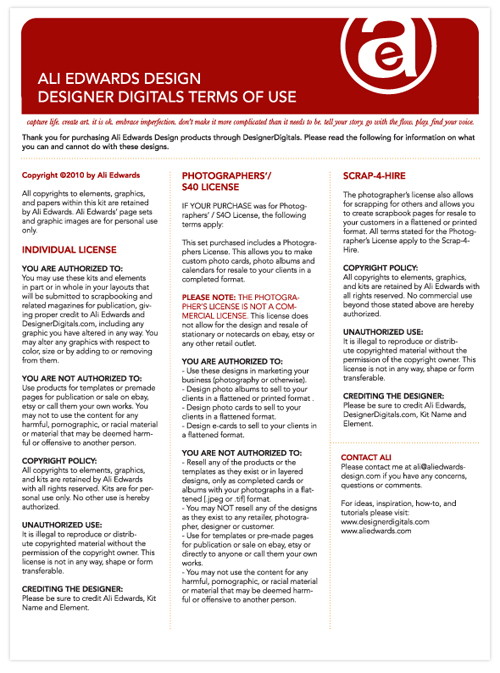
2. A "Terms Of Use" or "TOU" file that lists what you can and can not do with the elements depending on the license you selected at the time of purchase. This is often a PDF or a text file. At Designer Digitals you can select the Photographer's License which allows you to create custom photo cards, photo albums, and calendars for resale to your clients in a flattened/completed format.

3. The element(s). In the case of this download there is just one .png element. This is what you will open in Photoshop or Word.

4. Some products include an .abr file which is to be loaded into your brush palette in Photoshop or Elements (more about importing that tomorrow).
After I have unzipped the file and see the folder on my desktop I put the .zip file in the trash. Many people save all their zipped files or burn them to a DVD or store them on an external hard drive (which is smart if something happens to your main hard drive or the drive in which you are storing all your elements). I regularly back up my collection of elements to a second drive.
That's the basics of downloading and unzipping. Depending on what programs and operating systems you have on your computer things will likely look a little different.
ORGANIZING & STORAGE
There are lots of different ways you can go about organizing and storing your digital elements. What you choose will likely depend on a number of factors including hard drive space, time, interest, level of organization, number of products, amount of digital scrapbooking you plan to do, etc.
From reading a bit about this online I have found that people use a variety of different programs to organize their digital elements including ACDSee, iPhoto, Adobe Bridge, Picasa, and Shoebox. I believe the key in all those systems is tagging the products to make searching easier. This is a very informative thread on organizing your elements at Designer Digitals (it is a bit advanced if you don't have any experience...but reading is how we learn). JessicaSprague.com offers downloadable, self-paced organizing classes for ACDsee and Picasa.
To be honest, I have not tried any of those programs for organizing my digital scrapbooking supplies.
Rather than use a specific program, after I download and unzip I choose to store my digital elements (both the ones I create and the ones I download) in category folders on an external hard drive: LaCie d2 Quadra Hard Disk 1 TB. This drive is backed up to a second drive just in case.
This simple organization has been a really good system for me. I think part of the reason for this is that I don't have an overwhelming amount of supplies and I tend to know what I like and am fairly particular about what I download. Just as with my paper supplies, I have found that less is more in terms of getting the story told.
Here's a look at how I organize my category folders (click the image to view it larger):

My current categories include:
Actions
Albums
Alphabets
Brads, Etc
Christmas
Embellishments (includes subfolders: Butterflies, Circles, Clocks/Time, Dates, Element Combination Packs, Hearts, Metals (no words), Ribbons/Strips, Stars, Tags, Words)
Journal Templates
Layered Templates
Masks
Negative Sleeves
Overlays
Paper_Patterns
Paper_Solids
Photo or Frame Clusters
Stitched
These categories were created after I had started collecting supplies. From what I was using most I began making the folders and organizing products within each one. I have made adjustments here and there and combined or expanded folders based on my work flow.
As I was working on this post yesterday I made a few changes to my structure. One of the big changes was eliminating the Full Kit category. Instead of storing Full Kits (packages with a bunch of coordinating elements) together I went ahead and separated the contents out into other folders: mainly Papers_Patterns and Element Combination Packs (within the Embellishments folder). The reason I did this is that I have found that I rarely use a bunch of elements from one kit on the same layout. I am more of a mix-it-up embellishment user. I find that I like to take one thing from this package and one thing from another package and add them together.
The important point here is that your organization should match the way in which you work with the products. The other important point is to be flexible and ok to change things up when you find that they aren't working as well for you as you had hoped.
Here's a look at the sub-categories inside my Embellishments folder (click the image to view it larger):

Later this week I will address the way in which I go about selecting which supplies to use. I usually have a general idea of what I am looking for - such as a heart shape - and am able to go right into the Hearts sub-folder and select one.
As someone who does traditional, hybrid, and digital I find this method of organization to work really well.
I'd love to hear about how you organize your digital supplies. What works best for you? What have you tried that didn't work so great and what changes did you make?
WEDNESDAY :Working With Hybrid Elements (what I use the most and why)Tomorrow we will take a look at using digital elements on traditional layouts. I will walk you through my process and talk more about the different products that tend to work best for hybrid scrapbooking.


Comments
Sign in or sign up to comment.
102 comments
Hi Candice - I am hoping to bring this up again soon. I ended up having major computer issues right around the same time last year - unrelated to the backup service - and stopped the process. I just started it up again and am in the initial back up process right now. As soon as it is done (will take days at least) I hope to post an update.
Replies
Sign in or sign up to reply.
Thanks Ali! I usually "extract" my files iso unzipping. I'm wondering if that's the reason why I'm unable to clip things into templates.
Replies
Sign in or sign up to reply.
Loving this info! Tx Ali.
Replies
Sign in or sign up to reply.
It's totally up to you Michell - I delete mine because I think it's redundant and I have a secondary back up of the unzipped files.
Replies
Sign in or sign up to reply.
Do the files look different than what you see here?
Replies
Sign in or sign up to reply.
yes
Replies
Sign in or sign up to reply.
Great post with lots of info! I have a question...I use pse 8 and ACDSEE. My computer crashed during the summer and I had to replace the hard drive. I then upgraded to pse 8 and re-downloaded ACDSEE. I really want to store my elements in ACDSEE like i used to but when I go to pse 8 and try to open the elements stored there, they won't open. Before the great crash, I used pse 5 and could open elements stored in ACDSEE with no trouble...do you have a suggestion about what am I doing wrong? Any suggestions would be wonderful!
Thank you for this week and the freebie today! I can't wait to see what you do with it!
Replies
Sign in or sign up to reply.
Hi Ali,
Thanks for the posts on this. At the moment I am storing my digital stuff by designer as that seems to be how they are sold (so I don't get the same thing twice by accident), but I think I like your system better. This is still very new for me so am still trialling things out.
Do you have a photo labelling system that works for you? At the moment I am using folders of month by year and then categories below that. I guess its what ever works for the individual hey!
Thanks for your time. I look forward to tomorrow's installment.
Judith (Adelaide)
Replies
Sign in or sign up to reply.
By chance are you trying to open files that begin with an underscore ("_AEdwards" or something like that)? You should not have to install a plug-in. Can you open .psd files?
Replies
Sign in or sign up to reply.
Hi Holly - I wish I could be of more help but I don't have any first-hand experience with ACDsee. You might want to ask your question on the message board at Designer Digitals - the people there are very helpful. Here's a link: http://www.designerdigitals.com/digital-scrapbooking/community/general-digital-talk/
Replies
Sign in or sign up to reply.
Hi Judith - I organize my photos by year and month. It has been the simplest method for me so far.
Replies
Sign in or sign up to reply.
I am loving your tutorial. A very large part of my scrapbooking (paper and digital) is learning. Learning anything that I do not know, alcohol inks, stamping and now digital. At 70 yrs, I am trying to keep my brain functioning. Thanks for the thereapy.
Replies
Sign in or sign up to reply.
I think that is awesome Judy!
Replies
Sign in or sign up to reply.
Ali - just thinking about diving digi (more than the little bit I do which is VERY basic) this year, and the external hard drive info was key for me, so thank you! I was wondering how the heck everyone's systems even ran given the size of all the freebie files I ever downloaded. It had frightened me into "deer in the headlights" at the time, and I never really dove into digi because of that. I love that when I get past the ignorance of something, it totally blows the door open wide :) :) THANKS! Heidi
Replies
Sign in or sign up to reply.
thanks so much! I really didn't know how to start this, now it shouldn't be as intimidating!
Replies
Sign in or sign up to reply.
I organize my downloads the same way as you...the only thing I don't like about it is that sometimes the designer doesn't label their individual items with their name & since I tend to unzip a bunch of files at once, it's a pain to change all the names & sometimes I forget who made it. I guess I should unzip as soon as I download so I'm not overwhelmed.
Replies
Sign in or sign up to reply.
This series is so great. Thank you! I've wanted to try digi for a long time but I just get so frustrated with Adobe. I've had luck with Storybook Creator but I want to be able to have a little more flexibility. I see the great downloads available all over but I'm overwhelmed on where to start and even if they'll work. Your free download and instructions made it a win-win situation for me. I created an Adobe 12x12 I am pleased with and will definitely be doing more...and popping over to Designer Digitals of course to buy some of your beautiful "supplies" :)
Replies
Sign in or sign up to reply.
Very helpful tutorial, Ali. Your instructions are always very clear and concise. And your kids are cute, too!
Replies
Sign in or sign up to reply.
Hi Ali,
one other quick question, when you file your digital files do you keep them in their folder with the permissions and preview jpg? Or would you just have all you paper in a paper folder by color?
Thanks for covering this topic this week. I am in the process of doing the Design Your Life course completely digital so I have been thinking a lot about the digital process.
Candice
Replies
Sign in or sign up to reply.
Sarah...
Thanks for the iPhoto tutorial and link. I'm headed there next! I don't think I use iPhoto as much as I could.
Replies
Sign in or sign up to reply.