Tuesday Tutorials : Cathy Zielske : Multi-Photo Grids
Tags:

This week Tuesday Tutorials welcomes Cathy Zielske.
I first met Cathy back in 2003 when I took her Scraphic Design class at Creating Keepsakes University in Vancouver, BC. Known for her awesomely simple, beautifully designed layouts that get to the heart of the matter, she is also one of the best teachers around. Today she's going to walk you through the steps (via video + a pdf download) to create a photo grid in Photoshop Elements.
If you ever have the chance to take a class from Cathy online I highly recommend it.
Here's Cathy:
Consolidation has been a key inspiration for my scrapbook layout design lately, and I know of no better way to consolidate than to get a lot of photos onto a single layout using multi-photo grids. In this video, I’m going to walk you through how to make a 12-photo grid using Photoshop Elements for use on your next scrapbook page or project.
You can also download the PDF step by step tutorial here.
Tuesday Tutorial from Cathy Zielske on Vimeo.
Here's a look at some additional layout samples using the photo grid technique:

Cover one month at a glance.
I love condensing a whole month into one page. I designed a cool “monthly snaps” date artwork series so I can make a page a month for a full year. (See below for info on how you can download my artwork for free to use on your own pages.)
MATERIALS: Photoshop Elements 6; Avenir and Archer fonts
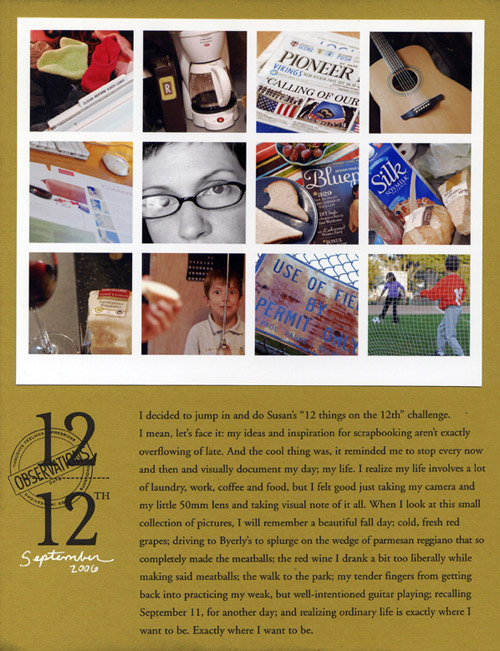
Give everyday snapshots an interesting home.
Ali and I once had a conversation where we both decided if photo grid layouts were the only ones you could ever again do, we’d both be just fine with that. Here, I used the grid approach to create a page when I was participating in my friend Susan’s 12 of 12 project. With a handful of photos and a few lines of text, you can capture a nice wide swath of your everyday life on one page.
MATERIALS: Photoshop; stamp (Cat’s Life Press); Times New Roman font
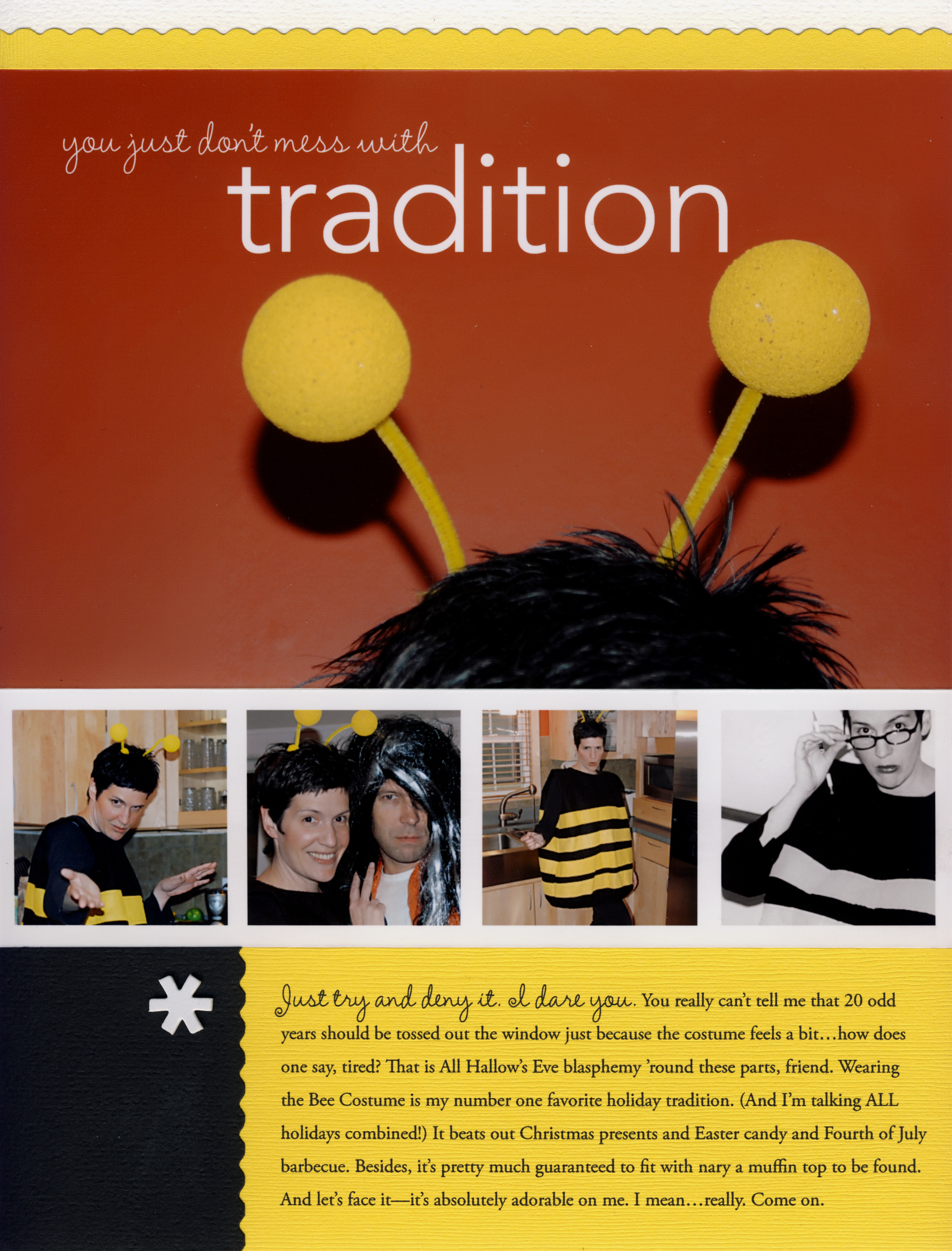
Make a grid strip.
Here one grid row is used to fill in shots taken over the years of me in my fabulous bee costume. (Note: I’ve been wearing it every year since I was in my early 20s.)
MATERIALS: InDesign CS; Amelie, Avenir and Times New Roman fonts
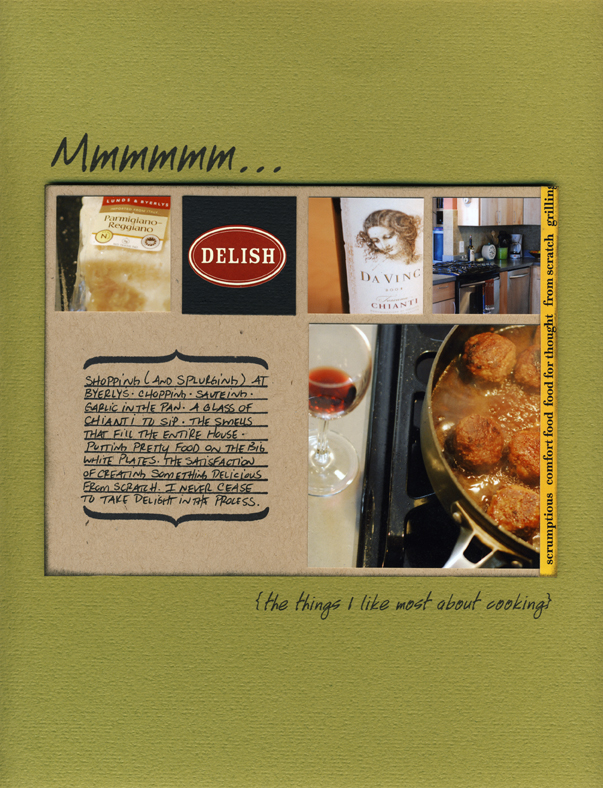
Think grid.
Thinking grid on any design can make page layout a snap. Here, the 12-square grid exists, it’s just filled in differently. One larger photo takes the place of four smaller ones, and a journaling area to fills in the other. Once you divide up the space, you’ll find that grids can be mixed and matched really easily.
MATERIALS: sticker (7gypsies); stamp (Autumn Leaves); Handwriting font.
FREE DOWNLOAD
Cathy is offering a free download of her Monthly Snaps artwork, to use in creating a page like the one above every month for a full year. You can also download the journaling card as well. Visit her blog for the download and while you're there catch some outtakes from her tutorial video.
Cathy Zielske is a graphic designer, author and blogger. She is the former art director for Simple Scrapbooks magazine, where she oversaw the visual direction of all Simple publications and books.
Cathy started scrapbooking in 2001, and found that her background in design and her passion for telling stories made her new hobby as easy as it was fun. As a scrapbooker, Cathy helped to usher in the trend of clean, graphic layout design. She is the author of the best-selling books, Clean&Simple Scrapbooking, and Clean&Simple Scrapbooking: The Sequel. Both books inspire women to take a fun, well-designed and guilt-free approach to telling their stories through scrapbooking.
Cathy is currently developing and teaching online workshops to help scrapbookers write better and take what they've written and make it look fabulous. She's currently teaming with Big Picture Scrapbooking in 2009 to offer her workshops.
Cathy also reaches scrapbookers through her popular blog, Bits&Pieces.
She hopes to develop more online content in 2010 and beyond, to inspire scrapbookers to continue telling their story in an authentic and well-designed way.


Comments
Sign in or sign up to comment.
95 comments
I have a problem I'm using PSE7 (HP Vista). #3 I can't find Photoshop Elements at the top of my page. I'm sure I'm just over looking this but.....HELP
Replies
Sign in or sign up to reply.
Thanks so much for the awesome tutorial. I have a question...when I copy my first square (step #7), I can't seem to place the second square using one of the 8 grid subdivisions. The closet I can place it is an inch over without overlapping. Please help, I was so frustrated trying to figure it out. Thank you!
Replies
Sign in or sign up to reply.
I am just getting my feet wet with Elements 7. Thank you for posting this free tutorial Cathy. It makes understanding Elements so-o-o much easier when you can watch a demo versus reading a book. I just wish my tiny brain could retain all this. :) lol Thank goodness for the PDF file!
Any ideas on where I could find more videos so I can learn? Thanks for everything!
Replies
Sign in or sign up to reply.
OMG!! Thank you sooo much! This was an amazing tutorial - I really, really appreciate it! It has empowered me to use Photoshop Elements more to my benefit!! I LOVED IT! Thanks again Cathy and Ali!
carol.in.canada
Replies
Sign in or sign up to reply.
Thank you Ali... it was just as you said. I would have never figured that one out ;-)
Replies
Sign in or sign up to reply.
A fantastic tutorial, something I've always wanted to know how to do and today, following the instructions, I completed my first multi photo grid! Can't wait to do more!! Thanks Ali and Cathy!! :o)
Replies
Sign in or sign up to reply.
I agree with you wholeheartedly. Watching a tutorial makes such a difference and everything then makes sense. I would also be very interested in any more that anyone knows of. Thanks for raising that point.
Replies
Sign in or sign up to reply.
Thanks Ali & Cathy! I'm fairly new to PSE, so I LOVED the tutorial! Like you both, I also love grid-type layouts for photos. I can't believe I can do this now.
I took a PSE class last year at my local community center. First day of class when I mentioned to the teacher that I wanted to learn how to work with .png files, he didn't know what I was talking about! Lame class! Well, I just learned how to last week from Jessica Spraque. And now watching Cathy, I feel I'm actually learning some cool skills. I appreciate your time. I loved the outtakes on your blog, Cathy. Funny! Also thanks for the free downloads.
Replies
Sign in or sign up to reply.
Thank you Ali and Cathy. I have only had PSE7 for a few weeks, but was in danger of getting divorced, due to spending most evenings trying to make it work!
Now, having followed your super clear tutorial, I have so impressed my other half, he's given me a reprieve!
Thank you thank you thank you!!!!
:)
Replies
Sign in or sign up to reply.
Forgive me if this was already mentioned somewhere here in the comments - this is a great tutorial. The one thing I would add (not that we want to confuse people...) is that I find masking much easier if, instead of the mouse thing shown here, I just make sure my photo is above the square that I want it masked to, and the photo layer is selected - and just press Control-G.
(I have PSE 5.0 but I think the command is the same or similar in newer versions and even in PS.) It's also under the Layers menu as "Group with Previous" but Ctrl-G is the shortcut.
I'm a mostly digital scrapbooker these days, but I didn't know you could use Alt-Shift to copy a layer or group of layers. Fabulous! This will make many things easier. Thanks!
Replies
Sign in or sign up to reply.
Hi Ali and Cathy, this was a wonderful technique to share, thanks much! The instructions were clear, so glad you provided them in both video and pdf formats. Come see my first multi-photo grid layout! I'm thrilled with it and will do more for sure.
http://www.stripeydots.blogspot.com/
Replies
Sign in or sign up to reply.
So you CAN teach an old dog new tricks!
Thanks CZ!
Replies
Sign in or sign up to reply.
Thanks so much! I never knew how to do this & everytime I tried to "eye" it, when it printed out, you could see the pictures weren't lined up right. Thanks again!
Replies
Sign in or sign up to reply.
I never paid any attention to the grids in Photoshop -now I'm going to play around with them-Thanks!
Replies
Sign in or sign up to reply.
Thank you so much for the Photo Grid Tutorial! Love it! I've always spent HOURS sizing the pictures on photoshop! Now I now how to make a grid in minutes instead of hours!Thank you!
Replies
Sign in or sign up to reply.
Thanks Ali and Cathy! This is by far the best tutorial you've had since starting this. I've always wanted to learn how to to masks and being a complete Photoshop novice, Cathy explained it all in a matter of minutes. Simple, quick and effective! Love that.
Replies
Sign in or sign up to reply.
This is stinking cool. Easy to follow, my page turned out so cute!! Thanks so much Ali & Cathy!
Replies
Sign in or sign up to reply.
Thanks so much Cathy. I just visited your blog and I loved it! The tutorial was very helpful and fun to do. It does take hours away from staring into a screen and trying to decide what layout you want to use. Thanks again. And,thank you Ali for having these wonderful Tuesday Tutorials.
Replies
Sign in or sign up to reply.
I really love this technique and I am new to photoshop.I am using CS4.Everything is ok until i open my picture and I cant resize it....if I go to the corners and drag the mouse it juts dsnt resize it...please anyone give me any idea about it..thanks again!
Replies
Sign in or sign up to reply.
see this is what happens when I go on vacation, I missed out on tuesday:) So, excited that Cathy is here:) Love this!!!!!!!!!!!!!!!!
Replies
Sign in or sign up to reply.