December Daily™ 2011 | Day Three
Tags:
Welcome to December Daily™ 2011 | Day Three.
Remember back on my Hello December post I suggested not getting hung up on exactly what day something happened? Here's an example of that for me today. These photos are from the last couple of days. That's good enough for me!
Today it's all about the twinkle.
Let's take a closer look:
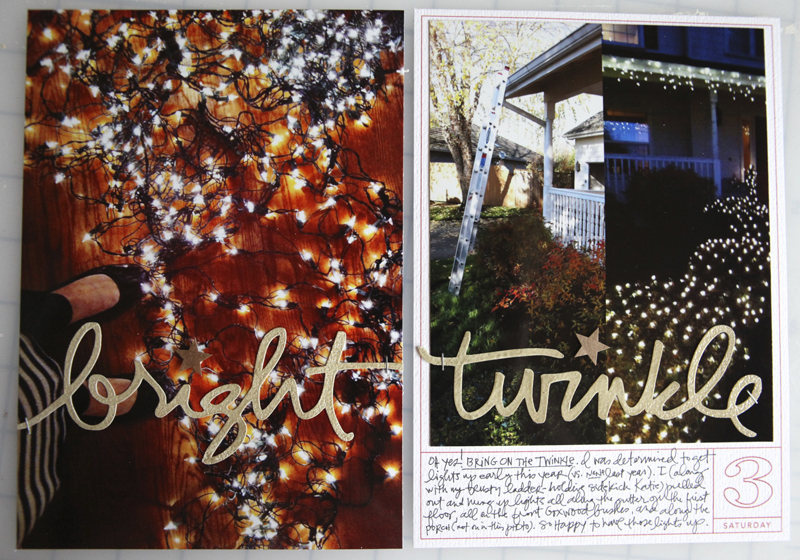
My Day Three ended up being a full page photo on the left and a photo and journaling on the right. All the photos I used to tell today's story were taken with my iPhone.
One of the biggest things I did for this spread was play with my Silhouette Cameo. Both the words above (bright and twinkle) were cut out using the Cameo which is an electronic die-cutting machine. It hooks up with your computer, you open some software, open a design (that you either create on your own or from their store or from a digital product), load some paper, and then click a button (essentially) that tells the machine to cut your design from cardstock (and other materials like vinyl).
That's a rough explanation, but you get the idea.
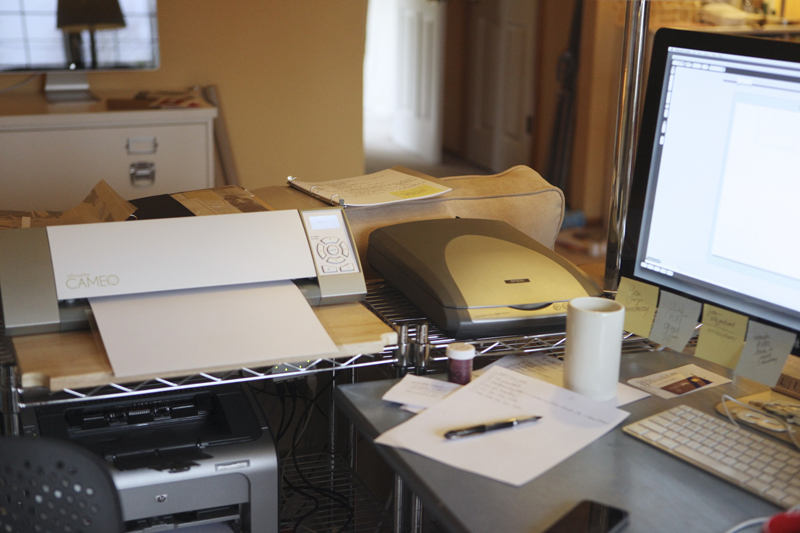
I've been wanting to play around with this more and I had some time to devote to it today and was super happy with how things turned out.
I ended up recording a video that shows how I opened up one of my digital word art files (from my new Christmas Preparations set) in the Silhouette software, traced it (so easy - click a button), and was then able to cut it out to use on my page.
My cut settings were this:
Media: Cardstock (I was using White Bazzil Orange Peel)
Speed: 3
Thickness: 33
Double Cut
NOTE : When I opened and traced the word "twinkle" I did need to clean it up a bit by removing two little areas. To do that I selected the word, went to Object/Release Compound Path. That allowed me to delete a couple extra shapes that appeared after the trace. When I was done deleting those two little areas I selected the word again and went to Object/Make Compound Path to connect it all together again.
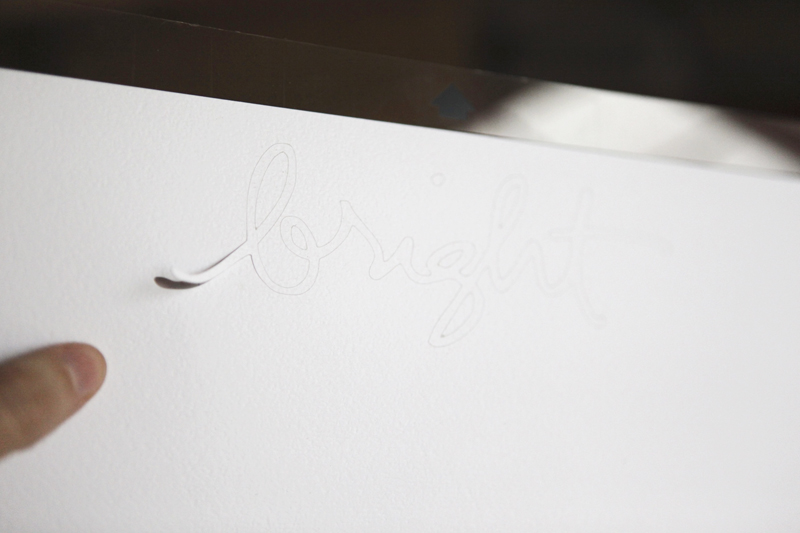
When it comes out of the machine it looks like this. You can see where I started to peel up the word.
And here's what it looks like when it was completely removed from the backing:
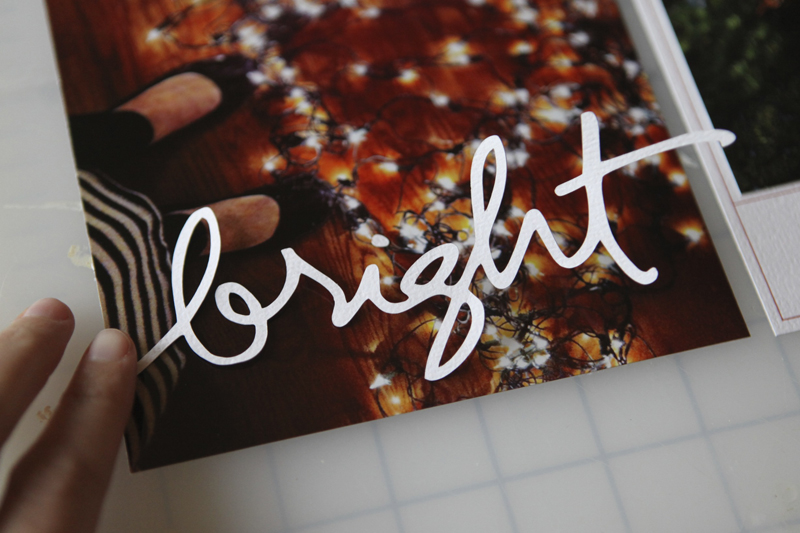
I was really excited at this point.
I decided to do another word (twinkle) to add to the other image.

I could have easily just left these two words alone and stuck them down but I decided to play a bit more.
I laid each word down on a craft sheet, added Versamark embossing ink, poured on some Zing Brown Sugar embossing powder and then set it with a heat gun.
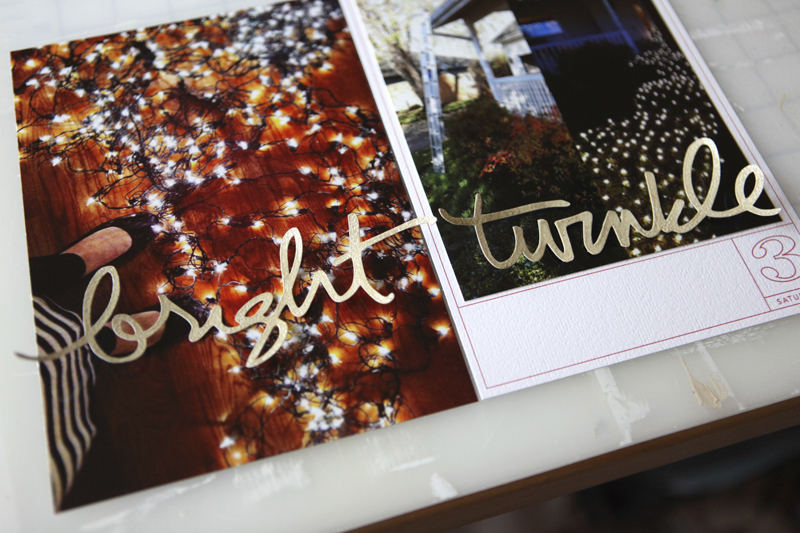
Awesome.
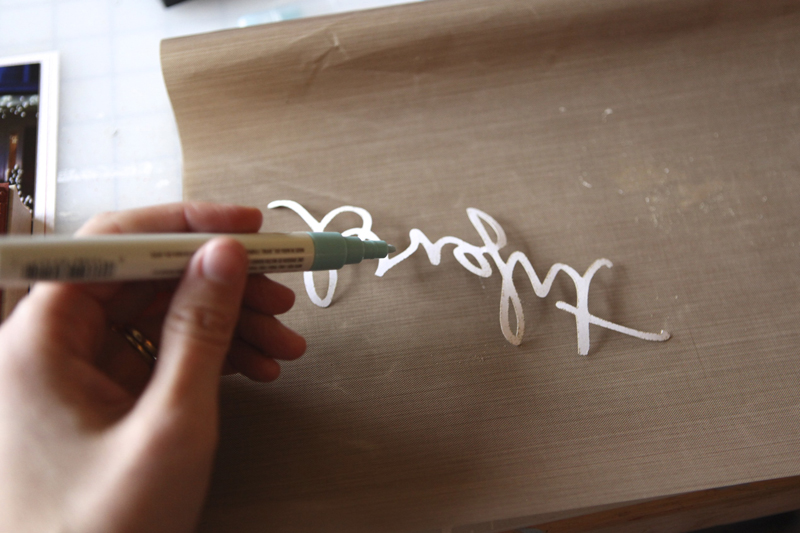
To adhere the words onto my photo I used a Martha Stewart Glue Pen.
You could also use a Xyron to add adhesive to the back (the Creatopia would be great for larger words). After I stuck the word down I put something a bit heavier, like a block stamp, on top to hold it down. And nope, I'm not left-handed - just wanted to show a photo holding the glue pen and was holding the camera in my right hand.
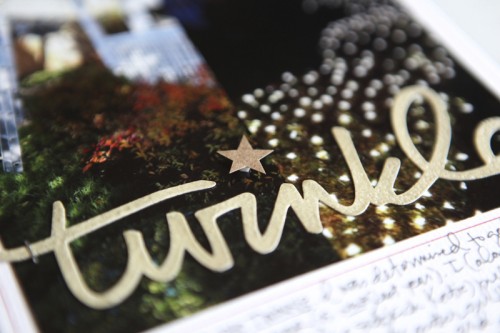
One thing I didn't want to deal with embossing was the dot for each of the "i" letters. Actually I tried and it just wasn't happening.
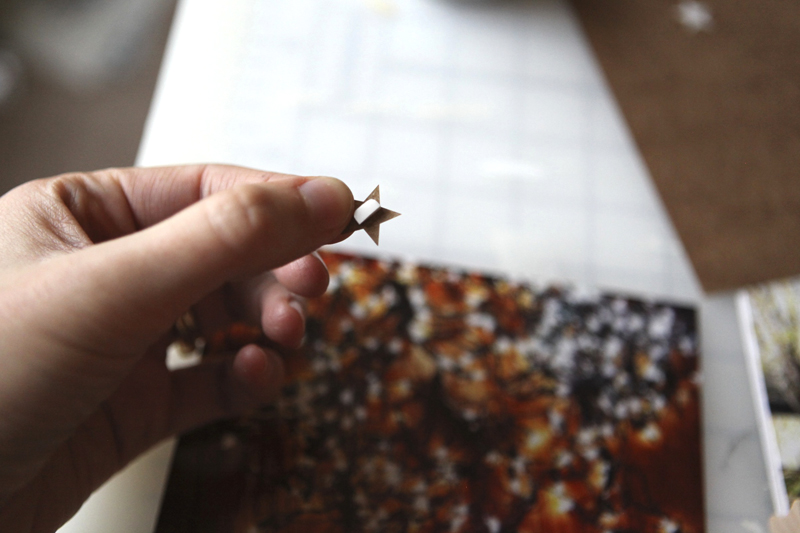
Instead I used two Studio Calico Crafty Cardstock Stickers. They are self-adhesive but I decided to pop them up a bit with 1/2 of a foam tab.
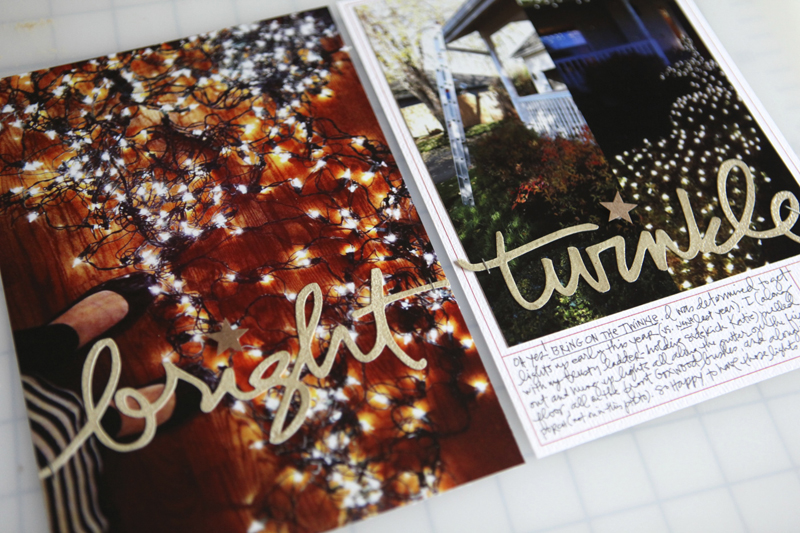
I added my journaling in the box below the image on the second page (writing directly onto the cardstock). That second page image is two photos that I brought together in photoshop that shows a before and after shot of the lights.
Here's a look at it in the album:
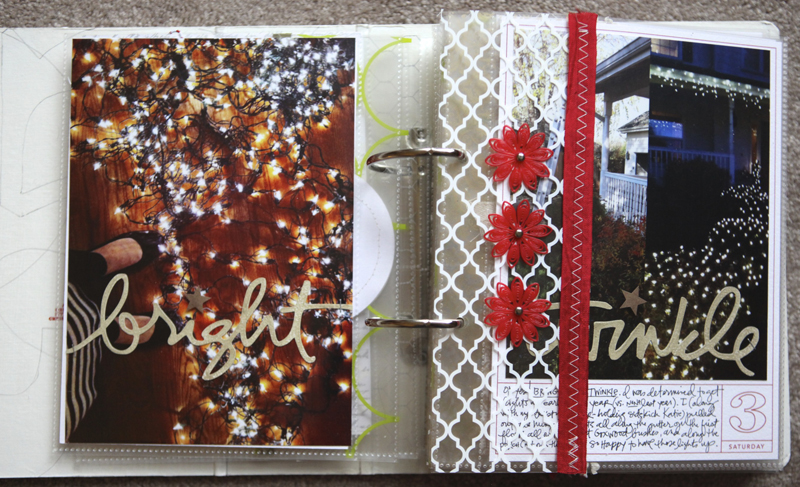
Bring on the twinkle!
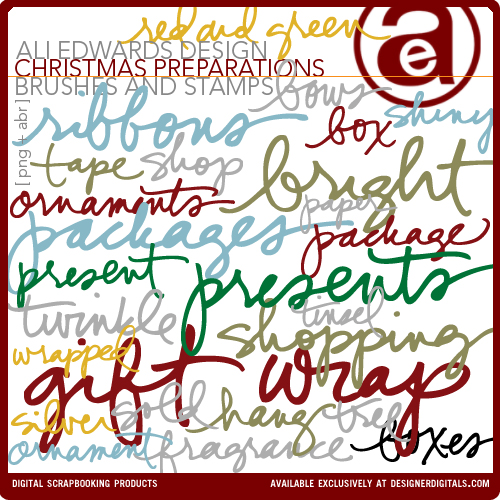
I also wanted to let you know that I have four new products available at Designer Digitals this weekend (two are shown above): Outline Christmas, Christmas Preparations, Faithful Christmas, and Celebration Of Life (which was created to help people honor and tell stories of those who have passed). All new products are always on sale the weekend they debut.
Don't forget that Designer Digitals is also doing a Days Of December sale where a selection of a couple hundred random products are on sale each day. Check out what's on sale here.
SUPPLIES | DAY THREE
Click on the images to link to the products.

TODAY'S POST SPONSORED BY |Online Card Classes
Join Kristina Werner and Jennifer McGuire for stamping and cardmaking technique classes at onlinecardclasses.com. Each class includes lifetime access to materials including numerous how-to videos and PDF downloads. Get the most out of product you already have on hand by adding new techniques to your crafting arsenal!
SHARE A LINK TO YOUR DAY THREE
You’re invited to include a link to your DAY THREE page here. Please link directly to your post vs. your general blog link.


Comments
Sign in or sign up to comment.
84 comments
Beautiful! I ran over and bought a couple of the new files at DD.
Regarding your CAMEO settings.....I have a Cameo as well, and with Bazzill, I use the Blade at 4, Speed 3, Thickness 33 and it cuts beautifully with one pass! No need to double cut. This can be a nice timesaver, especially if you're making multiples, PLUS...it really saves wear and tear on your blade and mat!
Replies
Thanks Donna - I'll try that next time!
Sign in or sign up to reply.
thanks for always sharing!! Your posts and creations help to bring (and keep me) into the holiday spirit. Been having some difficulties within my family (sister going throuhg a rough divorce, unemployment and three amazing little neices/nephews who have to deal with too much adult issues lately). however, a happy note, this little daily December helps me rememember all the small, good, memorable every day moments we do share. Thanks!
I've never seen that Martha Stewart glue pen... Really cool!
Replies
Sign in or sign up to reply.
Love the pages!! I've had my silhouette for a year and its the one tool I can't live without! I love to make my shapes using your digital words! I also use the tracing tool to make shapes for my stamps. I just scan the transperancy from the package, trace it, and use the offset tool so its just a bit bigger than the stamp. Love that especially for my letter stamp! TFS!
Replies
Sign in or sign up to reply.
such a great video - lots of new ideas swirling with how i can use my new cameo. :)
Replies
Sign in or sign up to reply.
The lights look amazing. We did the annual drive to look at Christmas lights over the weekend and were happy that doing it early meant avoiding the traffic disasters that come later in December.
Had to laugh at your "no I'm not left-handed" comment, because as a lefty I was going to ask!
Replies
Sign in or sign up to reply.
thanks for the tutorial! just bought a silhouette sd used and haven't yet figured out much of this. SO excited to know I can use all my digital brushes & put them to good use! thanks!
Replies
Sign in or sign up to reply.
Ali, What is the best way to resize the December Daily layered templates to fit the 6 x 8.5 American Crafts binder (since the templates are sized as 12 x 12)? Thanks, Kristen
Replies
Sign in or sign up to reply.
I loved the tutorial! I had tried to do this before, but it just didn't make sense to me... Have you thought of making files specifically for silhouette? Thanks so much!
Replies
Sign in or sign up to reply.
I haven't scrapbooked, journaled, or done anything like that in decades, so I thought that I would try this out. Before I go into tears, I printed out the purchased downloads and am wondering if I have to cut every single one of them down to size? Photoshop? Forget it. I know nothing about that and desperately need a class. I can't even do a video tutorial less than a half hour! I'm just really a mess. So I guess the two most important questions to me are where to get the binders and page protectors that will fit this and I did see people use like a daily divider of sorts. Is there a size or download for that? Last, but not least, a 2011 front page would be nice. I did manage to fudge the 2010 one and had planned on modifying that. I bet everything would look so much better if I only knew how to use Photoshop but I guess I'll have to do it all the old fashioned way. Boy am I feeling very dumb! I'm sorry for all of the questions and hopefully an old dog can learn new tricks!
Replies
Sign in or sign up to reply.
[...] December 3 [...]
Replies
Sign in or sign up to reply.
[...] On my work table this week were a couple things I’d tried with my Silhouette recently too – the one above is a Merry banner. I included a video tutorial on working with my digital files for the Silhouette in a December Daily post here. [...]
Replies
Sign in or sign up to reply.
[...] I added words cut with the Silhouette. Tis the Season is from my Messy Little Christmas package (go here to see a video tutorial on how to trace my PNG files with the Silhouette). Hello Joy will be [...]
Replies
Sign in or sign up to reply.
Oh Ali! Thank you SO much for sharing this tutorial on how to make your amazing brushes into cut files for my Silhouette! I am going to be very busy tracing the next few days!
Replies
Sign in or sign up to reply.
[...] And this piece, cut with my Silhouette, is available here. It’s part of a package called Hello Life Boxes and also includes days of the week. They work great as PNG files (just print and add your journaling – or add your journaling before you print) or can be cut with the Silhouette (just open the PNG file inside the Studio Software and trace – video tutorial available here). [...]
Replies
Sign in or sign up to reply.
Hi Ali,
I love that your digital files can be cut with the silhouette. I tried to cut a banner and it cut the letters inside another oval that also cut out from the banner so I ended up with no words in the banner, just an oval. I followed along in the video - traced the shape with the "trace". Is there another step or am I doing something wrong? Thanks for the help - and thanks for making such awesome products and showing us how to use them!
Replies
Thanks Ali...I must have missed that part. I'll give that a try.
Hi Erin - yes - you should always do a little clean up (there was a note under the video). Here's the steps/what I noted in that post: When I opened and traced the word “twinkle” I did need to clean it up a bit by removing two little areas. To do that I selected the word, went to Object/Release Compound Path. That allowed me to delete a couple extra shapes that appeared after the trace. When I was done deleting those two little areas I selected the word again and went to Object/Make Compound Path to connect it all together again.
Sign in or sign up to reply.
[...] You can see a tutorial where I walk through the basics of tracing my text files here. [...]
Replies
Sign in or sign up to reply.
[...] First up: Hello Life Boxes Vol.3. This is a companion to Hello Life Boxes (days of the week + sentiments) and Hello Life Boxes Vol.2 (months). Works great as a digital file or can be used with the Silhouette as a die cut. A tutorial on how to open and cut PNG files in Silhouette Studio can be found here. [...]
Replies
Sign in or sign up to reply.
[...] Absolutely. I’ve got a tutorial right here to help you with that. Make sure to read the note in that post which will also teach you how to [...]
Replies
Sign in or sign up to reply.
[...] You can watch a simple video about tracing PNG files with Silhouette Studio here. [...]
Replies
Sign in or sign up to reply.
[...] Next up I used my Silhouette to cut out a couple Memory Circles. For information on how to use PNG files with the Silhouette I’ve got a tutorial here. [...]
Replies
Sign in or sign up to reply.