Week in the Life : Album Creation Part One
Tags: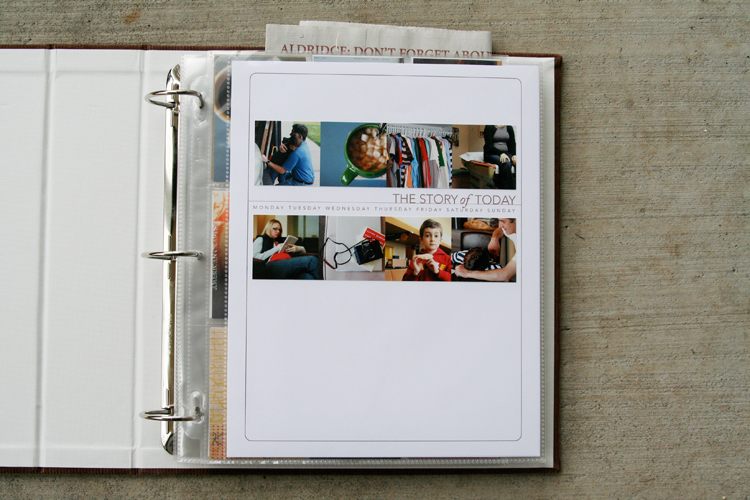
I definitely felt like something was missing yesterday. Having a camera attached for seven full days and then taking it away definitely made for a different sort of day.
One of the things I hoped for in doing this project again was to get back into the groove of taking daily photos. It has been awhile since I felt that desire or excitement related to using my camera daily. It definitely renewed my spark and appreciation for the everyday.
This past week I took 247 photos. That is quite a few less than when I have done this project in the past. Monday had the most photos with 83 and Sunday had the least with 14.
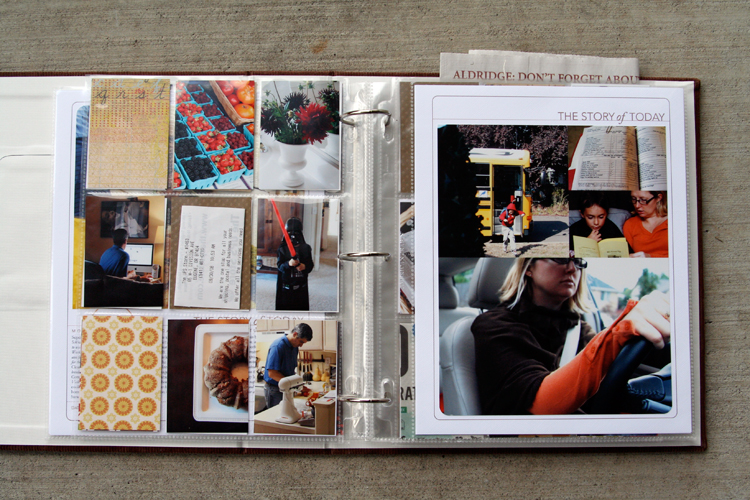
I spent most of my working day yesterday figuring out my formula for this album. Here's what I ended up with: two 8.5x11's (also called a spread) with one baseball card divided page protector sheet sandwiched in between. So far I have just completed the basics and plan to do a bit more embellishing (especially on the patterned paper rectangles as the week goes along) - process details to follow below:
NOTE: A lot of information follows. Take a deep breath, read through, and adopt the pieces (if you want) that make sense for how you want to put your album together. This is my album and the way I approach the process is what makes sense to me :) - everyone will be different.
Also, I work fast. Once I get going and decide on a formula I just go for it and don't spend a lot of time wondering if this is the "right" way or if I should be adding this or that. I want to get it done :). This approach is not hard, there are just steps to go through along the way.
MONDAY
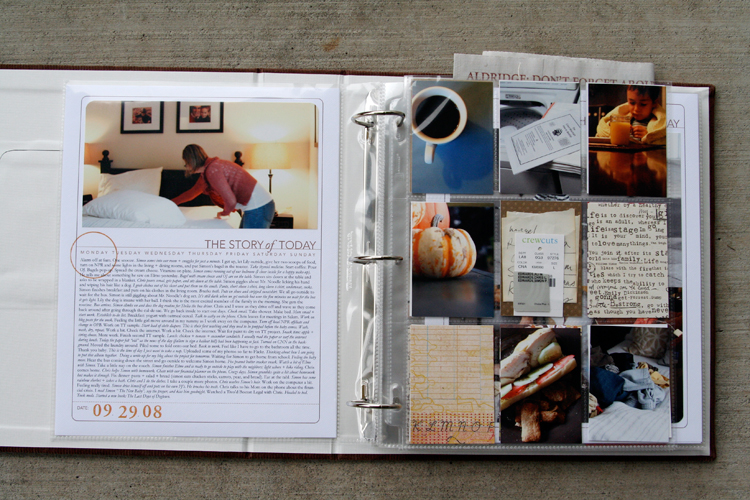
[ album: Corduroy American Crafts 8.5x11 (ended up with chestnut); page protectors: Avery Baseball Card Protectors; cardstock: Bazzill Lily White ]
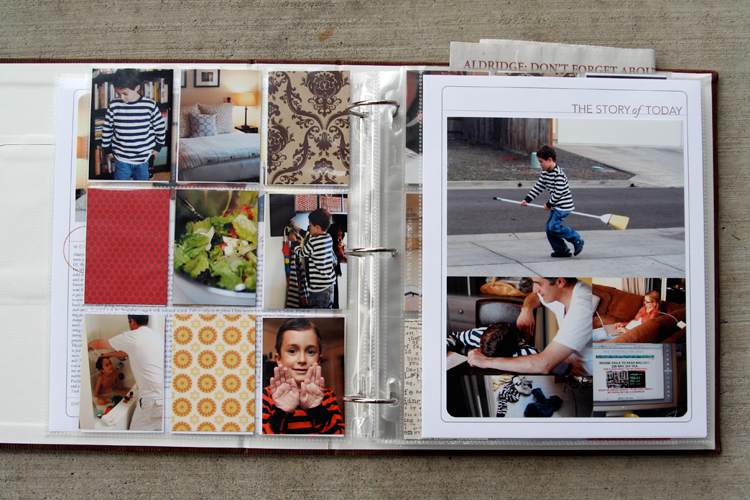
TUESDAY
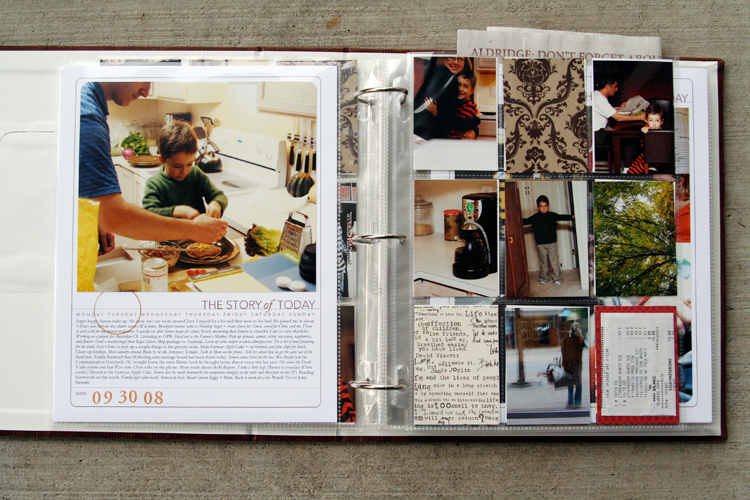
THE PROCESS
When attacking a project like this I prefer to do "like" things all at the same time. It's basically working in production-mode: doing things that are the same from one spread to the next all at the same time rather than finding yourself jumping back and forth.
Here's my process:
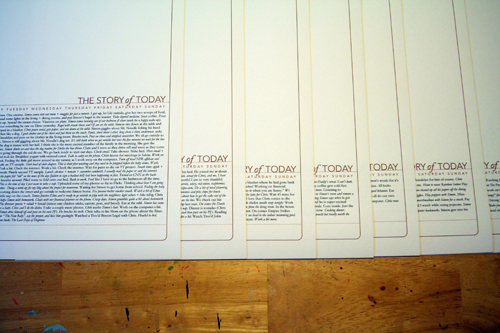
1. Print out all the daily templates (I am using the 8.5x11 Story of Today templates. A 12x12 version - that could be adjusted to 8x8 for printing at home - is also available). I added my journaling to my templates before printing them out. I simply copied and pasted from my Word document and adjusted the font/spacing/etc.
ADJUSTING THE TITLE TO MAKE ROOM FOR JOURNALING
As you will see, some pages have much more words than others. For these pages I adjusted the height of the title on the Story of Today template to make room for the journaling (this means my photos on these pages will be smaller).
Here's a look at how to change the height of the title to adjust for your journaling (images are from Photoshop CS3):
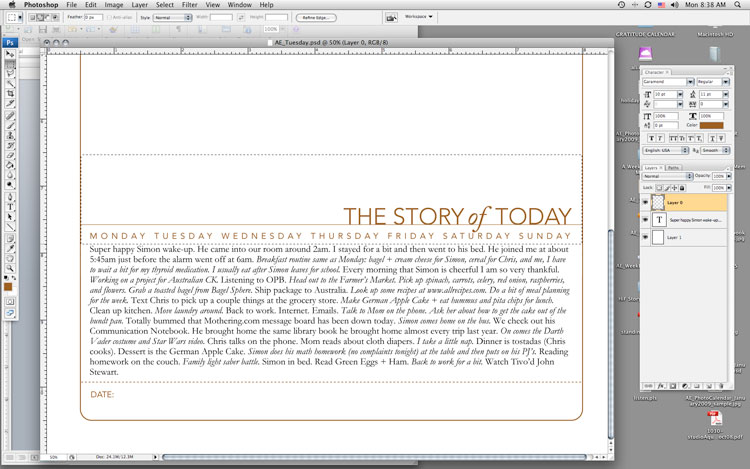
1. Type or copy and paste your journaling on a new layer (on top of the template).
2. Select/activate the template layer. Using the rectangular marquee tool, draw a box around the title, line, and days of the week. Be careful not to cut into the border as you are selecting this area.
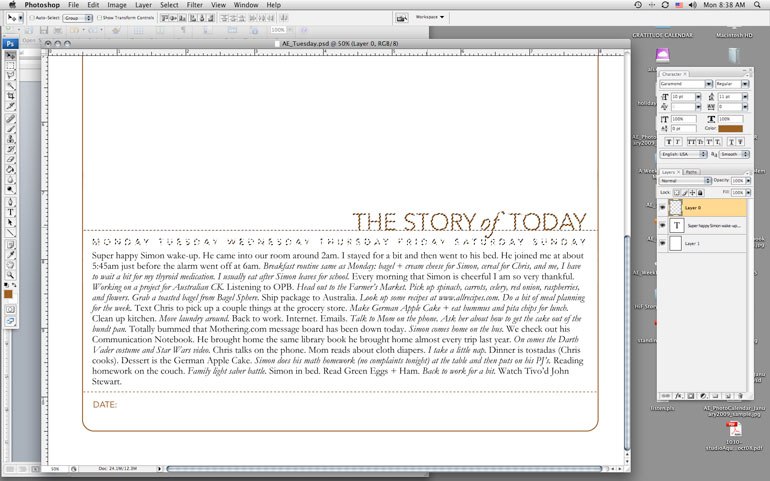
3. Switch to the Move Tool (the black arrow) and the selected area should just include the title, line, and days of the week. Use the up arrow key to move the entire piece farther up the page to accommodate your journaling.
4. Print.
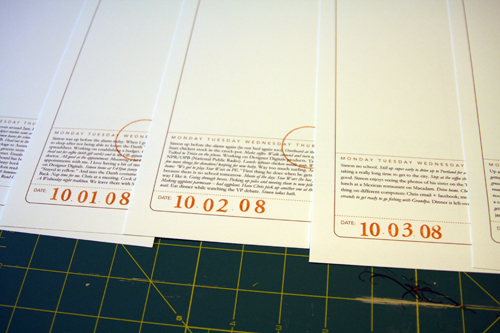
2. Add a stamped date and circle the day of the week on each of the
first page templates. Circle stamp from savvy stamps. Letter stamps are
unknown. Ink is from Stampin Up.
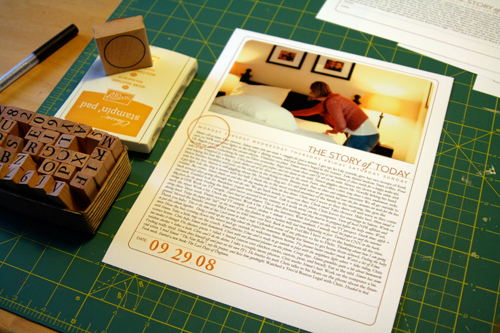
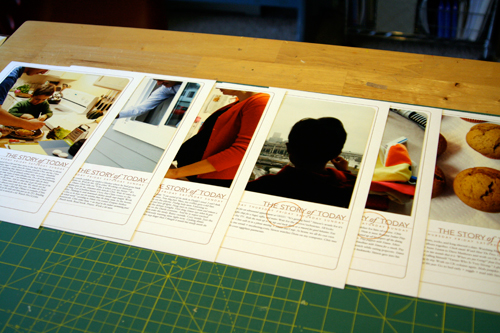
3. Order photos or print out at home. I ended up printing all mine at home today once I established my design formula. I printed photos for the opening page of each day. If you are using the 8.5x11 templates the width of my photos were 7.25 inches (the height varied by the amount of journaling - Monday had the most).
Before adhering I rounded the corners of the photos on the top to mimic the frame from the template.
There's seven pages finished (six are shown - the seventh is in the album already).
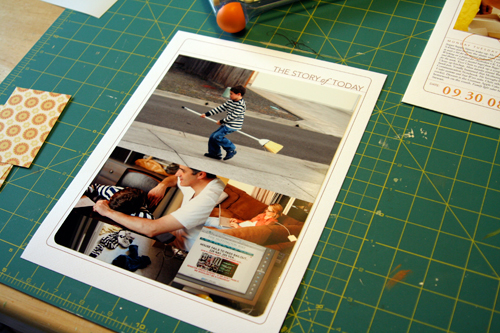
4. For the other full-page part of my spread I decided to do a gathering of photos that would fit into the same Story of Today template frame as the first page. Again, I followed the steps above to move the title to the top of the page (I removed the line and date at the bottom and the days of the week). I printed out seven of those onto white cardstock.
My photo gathering (created in Photoshop but could be easily done by cropping and arranging printed photos) is 7.25 inches wide by almost 9 inches tall. I varied the placement of the photos (large vs. small, etc) from one day to the next depending on the number of photos. Print, trim, corner round the bottom edge, and adhere to the white cardstock.
14 pages done and in page protectors (even though I plan to go back in and add a few embellishments - most likely word stickers, felt pieces, etc).
DIVIDED PAGE PROTECTOR PAGES
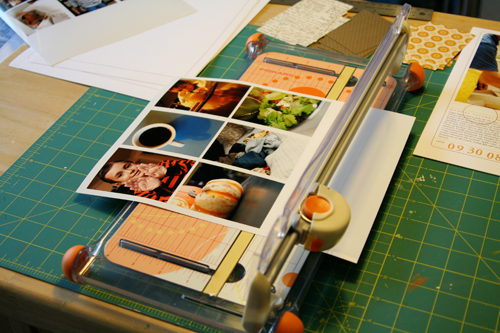
1. Print photos 2.5 inches wide x 3.5 inches tall. I chose to go with twelve of these size photos for each day - six for the front of the page protector and six for the back. The other pockets are filled with patterned paper (see below) or pieces of stuff cut to 2.5 inches x 3.5 inches.
Here's a look at the canvas of photos in Photoshop:
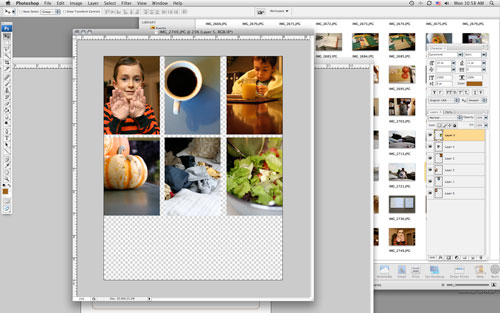
To do this and any other sort of gathering I create a new canvas (usually something like 8 inches x 10 inches at 300 dpi) and then open photos I want to use. Each photo is re-sized before adding to the canvas: in this case to 2.5 inches x 3.5 inches (which requires portions of the image to be cropped). I usually set my photo to 3.5 inches tall first which gives me a width of over 5 inches (if you have the proportion lock checked).
From there I use the crop tool to crop the image to 2.5 inches wide. I get to keep a lot of the image that way. After sizing the image I drag and drop it onto the new canvas and print after filling it up.
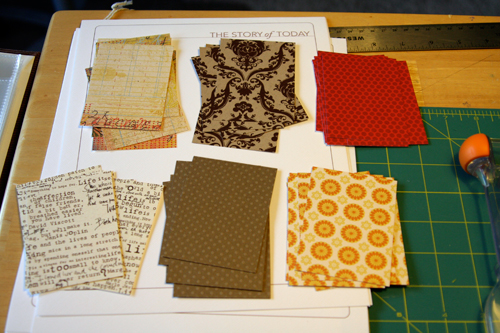
2. Cut up patterned paper rectangles for the divided page protectors: 2.5 inches x 3.5 inches. I cut seven of each pattern. Here's what I went with (from top left: Basic Grey Recess, Hambly Studios, Scenic Route Claudia Street (this one has big numbers on the back), 7gypsies Life Creme, Bazzill Basics Dotted Swiss Cardstock, and Scenic Route Sonoma Napa Street. Any six papers you have at home will work.
3. Slip a combination of photos and patterned papers into the divided page protector pockets. If you have many more photos you could skip the patterns and go with all photos or if you have a lot of stuff cut up pieces of those things to 2.5 inches x 3.5 inches to fit. Consider adding more pages if you need more pockets.
Some days I had less than 9 photos to crop after doing the photo gathering for the second page. For those places I will be adding more stuff/patterned paper rectangles.
These patterned paper rectangles will be embellished over the next few days.
Make this project as simple as you can for yourself so you will actually DO IT! You have already done so much work in taking photos, gathering stuff, and documenting life. Give it a home.

The pumpkin muffin recipe can be found here at allrecipes.com.

A complete list of posts related to the week in the life project can be found here.


Comments
Sign in or sign up to comment.
157 comments
Hi Ali. I was wondering where I can purchase the Story of Today templates? The link in your post did not link to anything. Thank you! BTW, I really enjoy your blog and your work. Truly inspirational.
Replies
Sign in or sign up to reply.
Amy - here's a direct link: http://www.designerdigitals.com/ecom/product_info.php/products_id/5929
(not sure what is up with the links - they are going through for me?)
Replies
Sign in or sign up to reply.
Ali,
I have tried to stay away from the project because I am a LAZY BUM, but I had to give up because it just looked so much fun, so I started one week later but I have started!! I am only at day 2 and it is FUN!!!
Replies
Sign in or sign up to reply.
I totally love your album! I have posted a slide show of my pages. Once I get them printed off I'll just add the journaling and be done. Check it out at
http://emmaelizabethjohns.blogspot.com/
Thanks Ali for the inspiration! This was a great and fast project.
Replies
Sign in or sign up to reply.
Thanks Ali! Yep, I'm resizing, then cropping so I guess I have to get used to the images like that. Yours always look wonderful so I'm hoping mine will be OK. I can't wait to post them to the Flickr group. I'm loving this project!!
Replies
Sign in or sign up to reply.
Hi Ali,
Thanks for all the helpful information. I went and downloaded the template from Designer Originals today and started to play. I typed up all my journaling for each day in word. I made several 8 x 10 canvas' of photos, so I was on a roll. I hate to say this, but I am stuck big time. I for the life of me can not get my printed journaling in word, to stick it as a new type layer ontop of the template in Adobe CS2. I just got that program not to long ago and this is my first project using it. I read all the help topics on the program about type, but just can't seem to get the type to copy and paste into the type/text layer. Do you have any idea, what I am doing wrong? I know you use MAC, and this is different for you, but did you type all your journalling manually into the layer above your template? I can't even get that to go for me. Maybe you know of a good article that uses word and type into adobe photoshop for me to read. I am about to just print out everything and just use my sissors to make it fit. URGH! I thought this process was to be the easy part. Thanks Ali for any help you can give me.
Shannon S.
(If I get this to work, I can bring you my album to show you at the Seattle Expo)
Replies
Sign in or sign up to reply.
Shannon - you should be able to select the Type tool (the "T") and then point and click on a new layer and drag to create a text box. Then you should be able to copy + paste your text from word.
Basically what you are doing is creating a text box.
Replies
Sign in or sign up to reply.
Ali I have LOVED this project from day one and all the thoughts, question/answers, tips, your step-by-step approach (especially for newbies like me), and especially your beautiful photos (congrats on baby #2 - so excited it's a girl - you look great!).
In response to Nancy above about downloading the .png file into Word (I also have Adobe Acrobat), is there a way to change the color and/or move the text around? It's probably pretty easy, I just don't know how and after I bought the wrong size overlay (I now have the 8.5x11 AND 12x12), I'm pretty frustrated at this point....
Replies
Sign in or sign up to reply.
WOW that is SO cool, so inspiring. Love the simplicity of this ... I can do this!
Replies
Sign in or sign up to reply.
Kim - I am not sure how to change the color or change the text around (or if you can) in Word (I don't normally use it for this sort of thing). Anyone have an idea?
Replies
Sign in or sign up to reply.
ALI! I absolutely love the simple look of your album. Thank you so much for the step by step instructions. It's such a fun and quick album that looks great. Can't wait to see your extra embellies!
On the Monday journaling, did you talk about the purpose of the album or the process of recording your week???
Replies
Sign in or sign up to reply.
Ali, this so rocks! I downloaded the templates today and even figured out how to unzip and open them!
Thanks so much for answering all these "post project" questions. I was wondering how to change the color on the template and voila! The info was right here already!
It is really wonderful that you are providing so much for all of us!!
THANK YOU!!!
Replies
Sign in or sign up to reply.
Hi, I just wanted to say thank you so much for this awsome project.
A couple of people above asked what they can use if they don't have PS or PSE, I don't have either, (I can't really afford it right now.) But I use GIMP, awful name I know, But it is a great programme, very similar to PS but free, just search on google and download. Takes a little bit to get used to, but I have heard PS does too? Since I am still getting used to using GIMP I am making this week Photo resizing week (I am resizing to 3x2, so four photos fit onto a 4x6 since I don't have a printer so have to get them printed at the store - 3x2 photos cost $1 to print, yet 4x6 are only 15cent!?!? Go figure.) I will also get together the album and cardstock and any other paper I will use and then next week I will put it all together.
Thanks again, Kylie :)
Oh, and also, at the end of the album I am going to make the last page, a page of "Nows". What the petrol costs this week, Prices of Staple items from the groceries, our address, what type of car we have, anything that is "Now" that might not be in a year or two, or tens time.
Replies
Sign in or sign up to reply.
Wow! How did you do that? You made this process look so easy - I'm sure I'll stumble a little here and there. But you showed us the results in such a short period of time! Thanks so much for the step-by-step instructions. This has really helped me see that it can be done!! I may take a little longer than you, but I'll definitely complete an album! Thanks so much Ali!!
Replies
Sign in or sign up to reply.
Thanks Ali! As usual you have a knack at making things simple. At first I thought this is going to be a big project and I don't know if I can finish it but this entry on putting the album together is so helpful and easy. I have ideas on my pages thanks to you. I wish I have PSE so I can buy your overlays though. :-( I'm one of those scrappers who gets intimidated with digital scrapbooking.... maybe your next book will be making digital simple instead of intimidating! LOL. Anyway, this may sound stupid but do I need PSE for your overlays to work? And are your overlays compatible with PSE7?
Replies
Sign in or sign up to reply.
Ali, I don't have PS, but I am on a Mac and thus using iPhoto. Will the templates work in there? Or do I really need a photo program or Word?
Replies
Sign in or sign up to reply.
I may have missed this question/answer but do you have to have a photo program to use your downloads? I have Adobe Photoshop Album Starter Edition but not sure if that would work, otherwise I have word.
TIA.
Replies
Sign in or sign up to reply.
Wow!!! Ali, I can't believe you are already done with this project. It looks so clean, I just love the look of it. Awesome and truly inspiring :)
Replies
Sign in or sign up to reply.
I have had so much fun taking photos this past week and my family has caught on to the idea too (now they say, "Hey Mom you'll want to get your camera for this ..."). Your presentation is simply inspiring -- I love it! (Even when I try to do something just like I've seen it always comes out different -- but there are lots of ways to do things right.) THANK YOU for sharing this experience -- it has been nice to be reminded of how big the "little things" are!
Replies
Sign in or sign up to reply.
good lord woman.
how do you do that?????
that is amazing.
i got sidetracked...I'm out of town for a conference. i'll get back on track later this week but i will say that i love that baseball card look. just awesome!
Replies
Sign in or sign up to reply.