December Daily 2010 | Working With The 6x8 Printable Overlays (+ Video Tutorial)
Tags: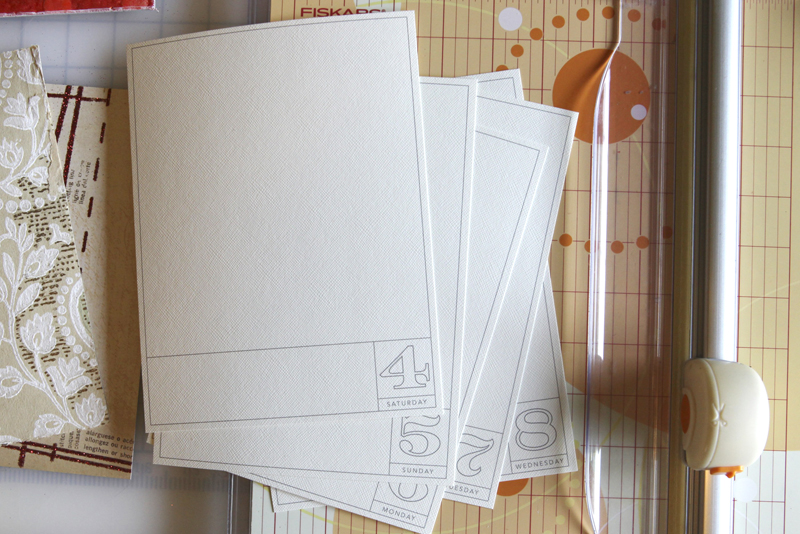
One of the key elements of my 2010 December Daily are these 6x8 overlays available through Designer Digitals. Below I've included a few different ways to work with these overlays including information on how to open and print the PDF file, how to open and recolor PNG files in Word, and an 8 minute video tutorial on working with the PNG file in Photoshop Elements (includes recoloring and photo-cropping information if you want to add the overlay onto a photo before printing).
When you purchase and download this package from Designer Digitals you will find that it includes the following:
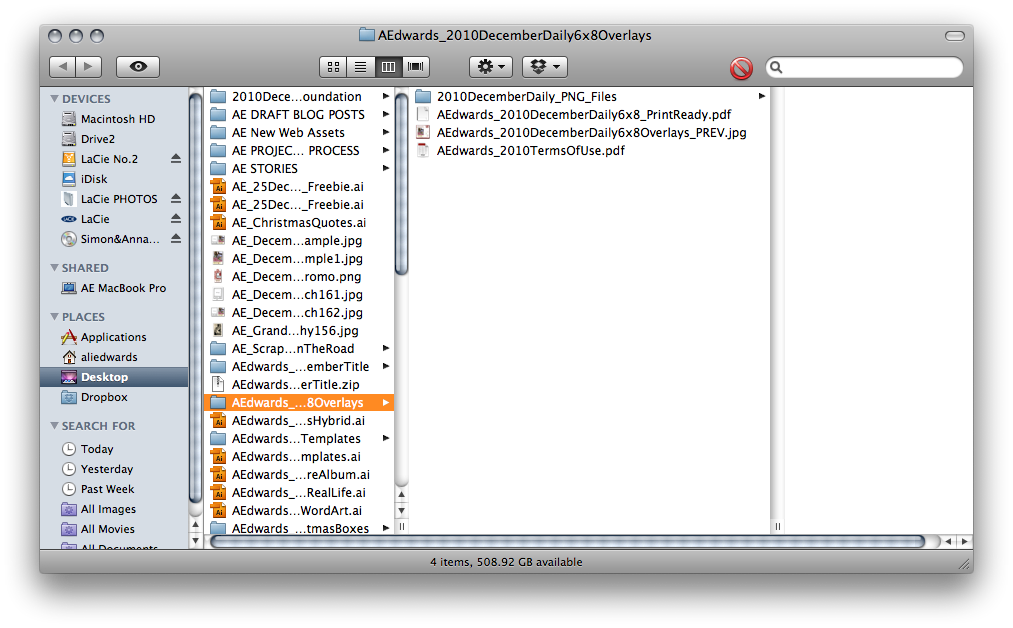
1. A folder of the daily PNG files sized to 6x8 (December 1 through December 31).
2. A print-ready PDF file.
3. A preview file.
4. My terms of use (personal use only).
PDF FILE
Let's start with what's most likely the simplest way to get these files printed: the PDF file.
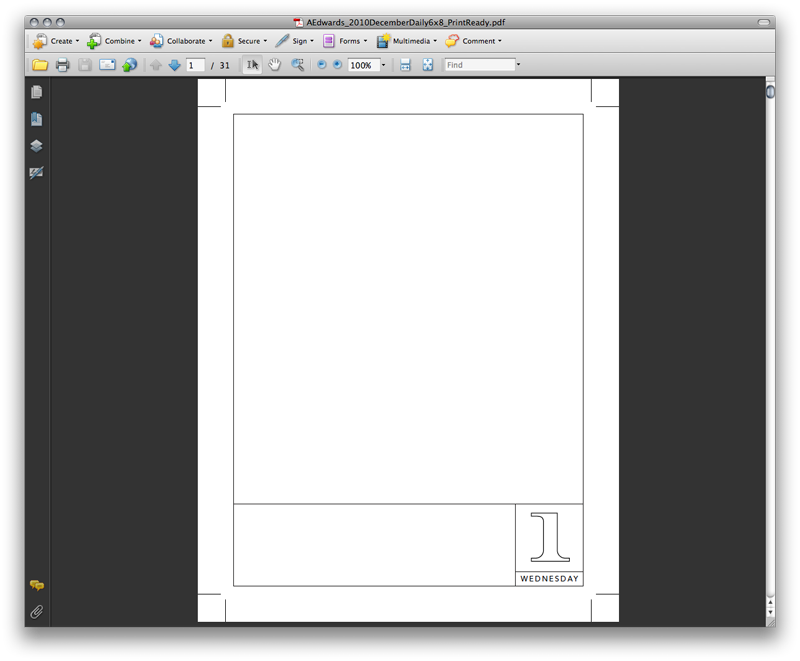
Double click on the print-ready PDF file to open - for most people it will open in Adobe Reader. If for some reason you don't have Adobe Reader on your computer already you can download it free here.
The PDF pages include "crop-marks" that will help you trim these pages to the exact 6 inch x 8 inch size. Go to file/print and your print dialog box should pop-up.
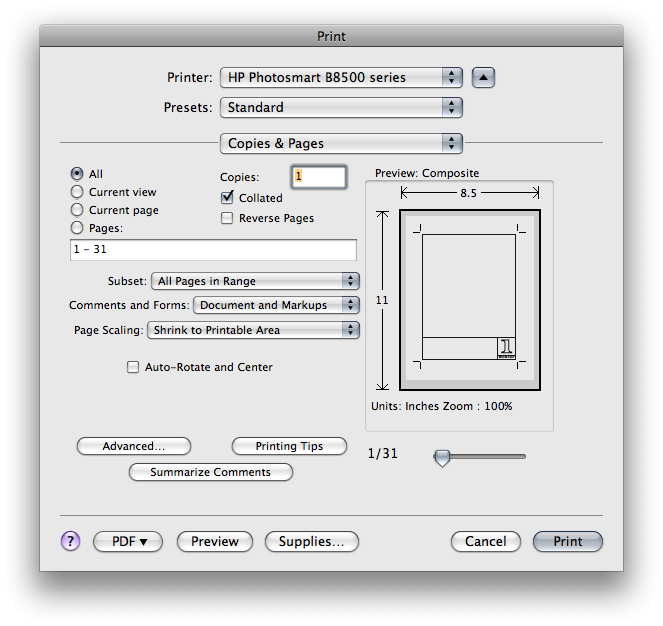
IMPORTANT NOTE: When printing the PDF file, make sure that you have selected "shrink to printable area" rather than "fit to printable area" under Page Scaling. This will position the overlay and crop marks in the middle of the page at the correct size. If you select "fit to printable area" it will stretch the overlay and it will end up printing larger.
I printed all my overlays on Bazzill Cream Puff cardstock using my HP Photosmart B8550 
PNG FILES
If you'd like more control over how the overlays look, or want to place one on a photo, or want to make any other adjustments, you'll want to use the PNG file.
RECOLORING A PNG FILE IN WORD
You do not need to have Photoshop Elements to recolor or print a PNG file. Here's how to do it with Microsoft Word:
1. Open a new Word file.
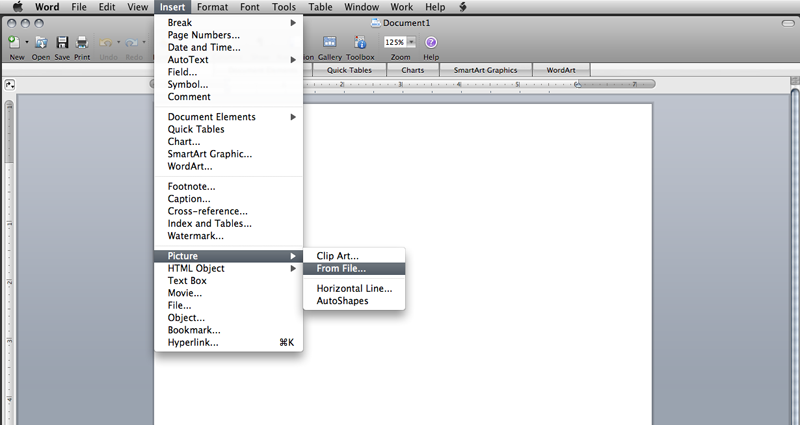
2. Go to Insert/Picture/From File and navigate to the PNG file you downloaded to your computer and select the day you want to work with.

Here's what the PNG file looks like when it opens in Word.

3. To recolor the lines of the overlay, go to View and select the Formatting Palette (I'm working in Word for Mac 2008). Click the Recolor icon near the top and select More Options at the bottom of the menu to choose a color. Click the color and the overlay should automatically change to that color.
4. Print on cardstock.
RECOLORING AND ADDING OVERLAY TO A PHOTO IN ELEMENTS
I've put together a quick video tutorial for those of you who might be interested in learning how to recolor or add an overlay to a photo in Photoshop Elements. You can download a free trial version of Elements here. If you'd like written step by step directions for recoloring PNG files in Elements, go here.
Ali Edwards' 2010 December Daily 6x8 Overlay Tutorial from Ali Edwards on Vimeo.

One thing to keep in mind with the overlays is that in addition to being printed directly on cardstock, they also work great layered on top of a photo. More information on that is included with the video above. Depending on what photo you choose to use they might offer a great spot for journaling as well.
Please let me know in the comments if you have any additional questions on working with these overlays.
More information on the December Daily project can be found here.


Comments
Sign in or sign up to comment.
90 comments
Hallo,
can I change the days to German.
Sunday= Sonntag
Gerda
Replies
Sign in or sign up to reply.
HI there! I am so excited to try this! I am a beginner and was wondering how do you get the overlays to print out in color? What program do I use and so forth? Do you have a tutorial?
Thanks so much!!
Stephanie
Replies
Hi Stephanie - I've got a video tutorial to help you through that here: http://aliedwards.com/2010/01/scrapbooking-with-your-computer-opening-recoloring-adding-to-a-photo-loading-brushes.html
Here's a page with a bunch of links for getting started: http://aliedwards.com/2010/01/getting-started-digital-scrapbooking.html
Sign in or sign up to reply.
I have a question about modifying the DD overlays for other uses. I'm looking to put together a family journal next year, and am not sure if I should buy or make one. I like the '365' concept and am wondering, can I use these templates but add more daily numbers (ie. in the numbers box: day 248,for example)?
Replies
Sign in or sign up to reply.
You are really tempting me to do this you make it look easy. But I just don't think I have enough stuff in my life going on to find 25 different pics in a row. You know I am a stay at home housewife kids are gone so its just me most of the time. Anyway I may try it and have a whole lot of blank pages. I did one last year with Papperclipping and never filled it up.
And I really liked your video I have PSE but hardly use it.
Replies
Sign in or sign up to reply.
Is there a way to resize the overlays just slightly smaller, say to 5x7? I'm planning to use a book that size and I think I'd cut off some part of the border and it won't look the same as the original overlay. Any suggestions would be appreciated!
Replies
Sign in or sign up to reply.
Well here I am again, I just printed out the overlays I decided to take the plunge and give it a try.....so what if I have a few blank pages...but I am going to try and fill them.
Love your video's I mainly use my PSE for pic storage hopefully I'll learn how to use it.
Thanks.
Replies
Sign in or sign up to reply.
[...] If you need additional information on working with this file please go here: Working With The 6×8 Printable Overlays [...]
Replies
Sign in or sign up to reply.
Just purchased the overlays and am try to change color in Word but its not working. Followed your example but only the outer line changes color. Help...using Microsoft Word 2007. Thanks
Replies
Sign in or sign up to reply.
[...] you’d like more information on how I worked with these last year check out this post which includes a video tutorial and steps for working with these printables in both Elements and [...]
Replies
Sign in or sign up to reply.
[...] The 2011 December Daily Overlay Package includes 31 individual PNG files (dates and days of the week are customized for 2011), and print-ready PDF files in both black and red. As you can see above I’m using the red file this year. The PDF files include crop marks to show you right where to trim after printing. I printed my pages on Bazzill White 8.5×11 cardstock. These pages are 6 inches x 8.5 inches tall – sized to fit the album included with the kit from Studio Calico. I did a video tutorial on working with these overlays last year – the same steps still apply: Working With The December Daily Printable Overlays [...]
Replies
Sign in or sign up to reply.
I have read so many posts concerning the blogger lovers but this paragraph is really a fastidious article, keep it up.
Replies
Sign in or sign up to reply.
I am using the PNG files in another scrapbooking software, I have used your PNGs successfully with my software in the past.I want to use as an overlay, on top of a photo. For some reason the 4x6 journaling cards (DD 2013) aren't working as overlays. They are coming out opaque, even though I am sure they are the PNGs I am trying to use. Do you know why?
Replies
Sign in or sign up to reply.
Thank you so much for the awesome tutorial! I've seriously been wasting so much time trying to figure out how to do these sorts of thing in elements with no luck, just frustration! ha
Finally, after probably 30 hours of trying to learn myself I've printed off my first edited photo with some PNG stamps that I purchased through Studio Calico! yay! THANKS to you :)
I would love to see a basics course by you showing the ropes of how to load, and use all the digital bits available in the scrapbooking world on photos in Elements. I love how you and others use them on your photos and in albums. Thanks for sharing the brains! :)
Replies
Sign in or sign up to reply.